The HTML5 Canvas API is incredibly powerful, allowing developers to manipulate, resize, and apply filters to images entirely on the client side. However, transitioning from manipulating pixels on screen to exporting a production-ready image file is fraught with pitfalls.
If you've ever exported an image from a canvas and found it blurry, lacking transparency, or missing orientation data, you aren't alone. Below are the five most common mistakes developers make when exporting via canvas.toDataURL() or canvas.toBlob(), and how to fix them.
1. Ignoring Device Pixel Ratio (DPI Scaling)
The most frequent complaint is that exported canvas images look blurry or pixelated, especially text or vector drawings. This happens because developers set the canvas dimensions to match the CSS display dimensions, ignoring the screen's Device Pixel Ratio (DPI).
The Fix:
You must scale the internal resolution of the canvas to match the display density, while keeping the CSS dimensions the same. When exporting, you extract the high-resolution buffer.
// Get the DPR and CSS dimensions
const dpr = window.devicePixelRatio || 1;
const rect = canvas.getBoundingClientRect();

// Set actual internal dimensions
canvas.width = rect.width * dpr;
canvas.height = rect.height * dpr;

// Scale the context to ensure drawing operations match
const ctx = canvas.getContext('2d');
ctx.scale(dpr, dpr);
2. Losing Transparency on JPEG Export
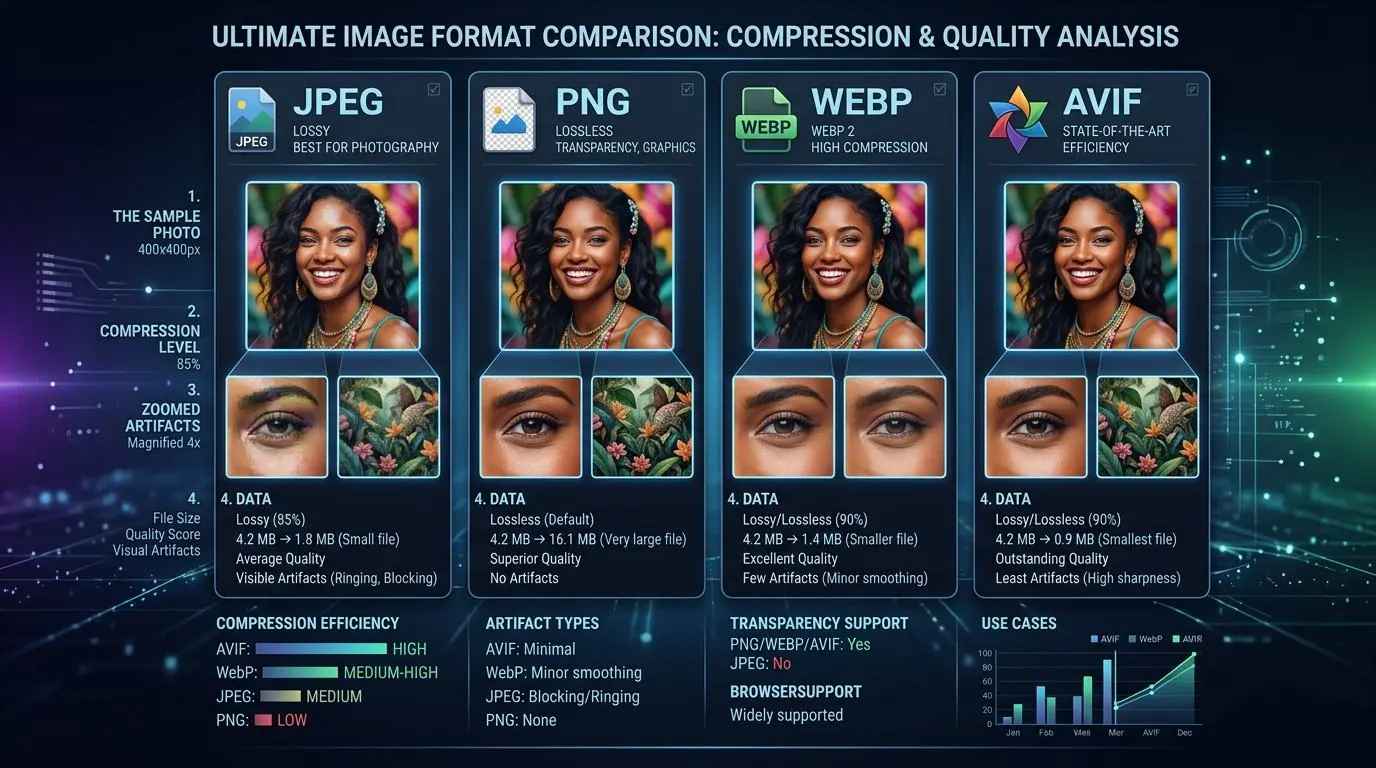
The JPEG format does not support an alpha channel (transparency). When you draw a transparent PNG onto a canvas and then export it via canvas.toDataURL('image/jpeg'), the browser fills the transparent areas with a default color—usually solid black.
The Fix:
Before drawing your image onto the canvas, fill the entire canvas with a solid white background (or whatever color fits your design).
const ctx = canvas.getContext('2d');
// Fill with white before drawing the image
ctx.fillStyle = '#FFFFFF';
ctx.fillRect(0, 0, canvas.width, canvas.height);
ctx.drawImage(img, 0, 0);
3. Stripping EXIF Metadata
When you draw an image to a canvas and export it, you are only exporting the pixel data. All EXIF metadata—including GPS coordinates, camera models, copyright information, and crucially, Orientation data—is permanently lost.
The Fix:
If you need to preserve EXIF data, the Canvas API alone cannot help you. You must use a JavaScript library (such as exifr or piexifjs) to extract the binary EXIF segment from the original file buffer, and then inject it into the newly created JPEG blob after the canvas export.
4. Using toDataURL Instead of toBlob
For small images, canvas.toDataURL() is convenient because it returns a base64 string. However, base64 strings are approximately 33% larger than the raw binary data. If you are processing large images (e.g., 4K photos), calling toDataURL() can cause severe memory spikes, blocking the main thread and crashing mobile browsers.
The Fix:
Always use canvas.toBlob(). It operates asynchronously and returns a highly efficient Blob object, which can be easily converted to an ObjectURL for downloading.
canvas.toBlob((blob) => {
    const url = URL.createObjectURL(blob);
    // Use URL for download or display
}, 'image/jpeg', 0.90);
5. Hardcoding Image Smoothing
When resizing images (especially downsampling large images to thumbnails), the default browser interpolation can be harsh, resulting in jagged edges (aliasing). Conversely, upscaling small images can result in excessive blurriness.
The Fix:
Explicitly control the imageSmoothingQuality property on the canvas context before drawing. For significant downscaling (e.g., reducing a 4000px image to 400px), a single draw pass will often look terrible regardless of this setting. In these cases, you must implement "step-down" resizing—drawing the image at 50% size, then drawing that result at 50% again, until you reach the target dimensions.
const ctx = canvas.getContext('2d');
ctx.imageSmoothingEnabled = true;
ctx.imageSmoothingQuality = 'high'; // 'low', 'medium', or 'high'
